Update: This code is using an outdated version of the Cocos2D port. It’ll still work if you use the sample download linked at the end – but it’s using outdated API calls. Unfortunately I don’t have time to update the tutorial to the new release of Cocos2D. Sorry guys 🙁
Cocos2D is a fantastic library / game engine for numerous platforms from PCs to smart phones. It supports the vast majority of the features necessary to make almost any 2D-based game, it even includes a fully-featured physics engine!
As part of learning Cocos2D for Android I followed Ray Wenderlich’s tutorials for the iPhone port of Cocos2D. Of course we’re dealing with Android here, so here is his tutorial recreated for Android. Ray deserves all credit for this tutorial – the tutorial is originally his, this is merely a port to Android. Credit should also go to Sketchydroide for his basic template for Cocos2D on Android.
Downloading and Installing Cocos2D
I’m going to assume you’ve already got the Android SDK installed, along with Eclipse. If not, you can follow the guides at Google. You’ll also need to test with a real device, the emulator is far too slow to test Cocos2D applications, even one as simple as this tutorial. I’m also going to assume you know Java, otherwise you’re going to get lost very quickly. There are plenty of Java tutorials out there, don’t worry we’ll wait here while you learn. The basics of Android (such as what Activities are, etc.) are helpful to know, but not critical.
First you need to download cocos2d-android-1. I’m going to assume you’re using the pre-compiled library (the .jar), although you’re welcome to include the full source code if you wish. In fact when you’re developing on your own, the source code is a better option since you gain full documentation along with the ability to tweak the code should you need to.
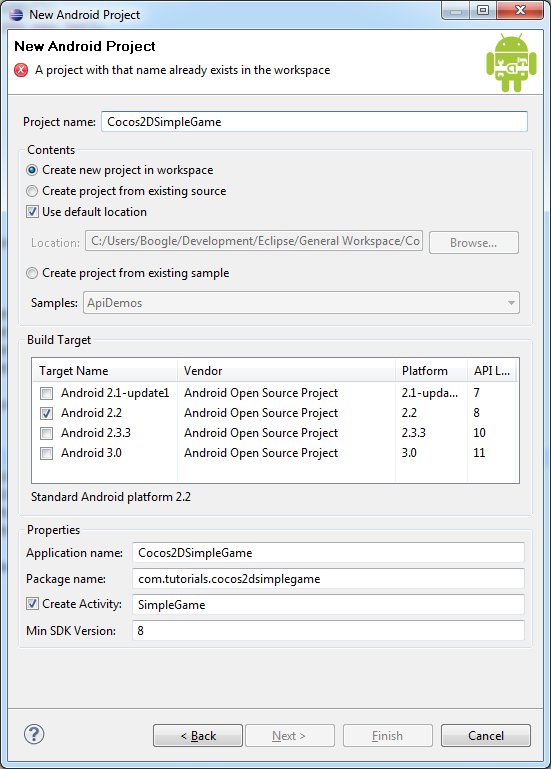
Open up Eclipse and create a new Android Project:
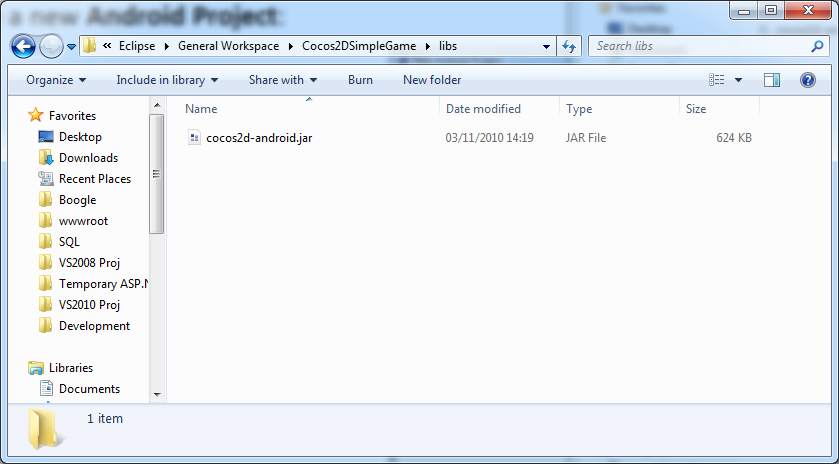
Now you need to copy the cocos2d-android.jar file into the ‘libs’ folder of your project. If the folder doesn’t exist, create it.
Go back to Eclipse, right-click on your project and select ‘Build Path/Add External Archives’.
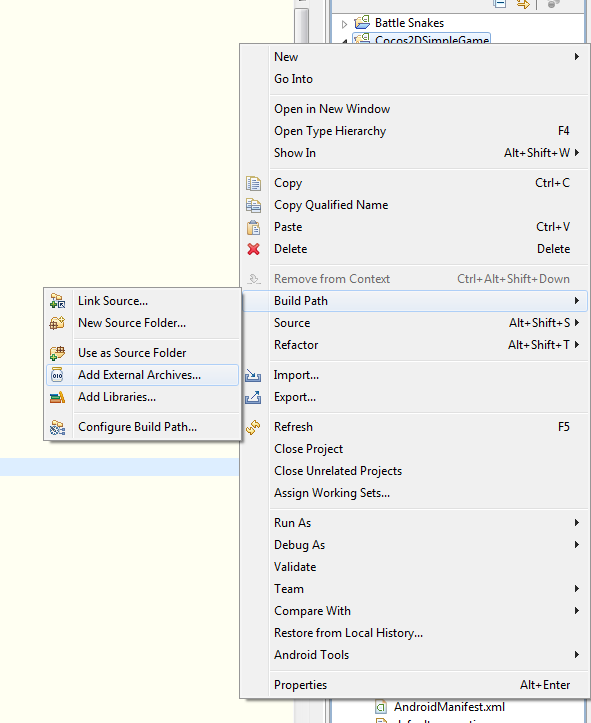 Browse to where you saved the .jar file and select ‘open’.
Next download fps_images.png and put into the assets folder of your project. You are now setup with Cocos2D!

Initial Setup
Next you need to put some code into your default activity (SimpleGame) so that you can start making your game. At the top of the class add a protected field:
protected CCGLSurfaceView _glSurfaceView;
At this point Eclipse may be moaning about the line you’ve just added. This is because you haven’t imported the namespace. The easiest way to do this is to press CTRL+SHIFT+O. Any time you use a new class, try pressing this key combination any time a completed line has an error to do with missing identifiers. Next replace the onCreate method with the following:
@Override
public void onCreate(Bundle savedInstanceState)
{
	super.onCreate(savedInstanceState);

	requestWindowFeature(Window.FEATURE_NO_TITLE);
	getWindow().setFlags(WindowManager.LayoutParams.FLAG_FULLSCREEN, WindowManager.LayoutParams.FLAG_FULLSCREEN);
	getWindow().setFlags(WindowManager.LayoutParams.FLAG_KEEP_SCREEN_ON, WindowManager.LayoutParams.FLAG_KEEP_SCREEN_ON);

	_glSurfaceView = new CCGLSurfaceView(this);

	setContentView(_glSurfaceView);
}}
This sets up the OpenGL surface for Cocos2D to utilise. We set some flags to ensure we always have a fullscreen view, then display the view to the user.
Replace the onStart method with the following:
@Override
public void onStart()
{
	super.onStart();

	CCDirector.sharedDirector().attachInView(_glSurfaceView);

	CCDirector.sharedDirector().setDisplayFPS(true);

	CCDirector.sharedDirector().setAnimationInterval(1.0f / 60.0f);
}
This is the initial setup for Cocos2D. First we tell Cocos2D which surface to render to (the OpenGL surface we set up earlier). We then ask Cocos2D to display the FPS and to run at 60fps. Note that the 60fps is our animation interval, not the framerate of the application itself which is often limited by the device.
Finally add the following extra overrides:
@Override
public void onPause()
{
	super.onPause();

	CCDirector.sharedDirector().pause();
}

@Override
public void onResume()
{
	super.onResume();

	CCDirector.sharedDirector().resume();
}

@Override
public void onStop()
{
	super.onStop();

	CCDirector.sharedDirector().end();
}
These notify Cocos2D with what’s going on with the device – such as when the user has switched to another application or the game is being stopped by the OS.
This is all the setup we really need. You can run the game now, but it won’t display anything at this early stage (we haven’t even set up a hello world scene!).
Adding a Sprite
Sprites are small images in 2D games that move about. These can be characters, projectiles or even clouds. In this game we’ll have three separate types of sprite: Player, target (enemy), and projectile. First we need a graphic to use! You can either create your own, or use the tasty graphics provided by Ray Wenderlich’s wife: Player, Projectile, Target. Place your sprite graphics within the ‘assets’ folder of your project.


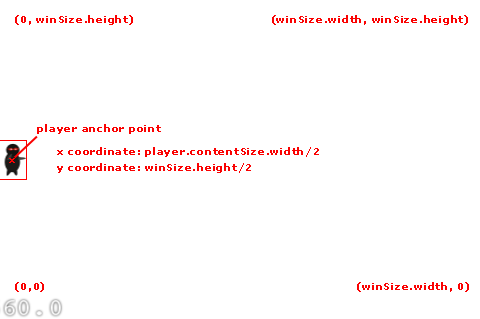
Now we need to place the sprite on the game screen. Cocos2D has an inverted coordinate system to what you’re used to – the origin is the bottom left of the screen. So as X increases you head to the right of the screen. As Y increases you go up the screen. Additionally by default the origin / anchor point of sprites is in the centre. The coordinate system is the same regardless of the platform you run Cocos2D on. The following graphic should help you visualise the coordinate system of Cocos2D:
Enough boring theory, let’s get some code down! Add a new class to your project, call it ‘GameLayer’ and make it extend ‘CCLayer’. Add the following static method at the top of the class declaration:
public static CCScene scene()
{
	CCScene scene = CCScene.node();
	CCLayer layer = new GameLayer();

	scene.addChild(layer);

	return scene;
}
Now add a default constructor:
protected GameLayer()
{
	CGSize winSize = CCDirector.sharedDirector().displaySize();
	CCSprite player = CCSprite.sprite("Player.png");

	player.setPosition(CGPoint.ccp(_player.getContentSize().width / 2.0f, winSize.height / 2.0f));

	addChild(_player);
}
At this point it may be worth a quick look at the earlier diagram to see exactly why we’ve chosen the coordinates we have for the player.
Now before we can see this running, we first need to tell Cocos2D to run our new scene & layer. Go back to SimpleGame.java and add the following code to the end of the onStart method:
CCScene scene = GameLayer.scene();
CCDirector.sharedDirector().runWithScene(scene);
Now run the application and admire your handywork!
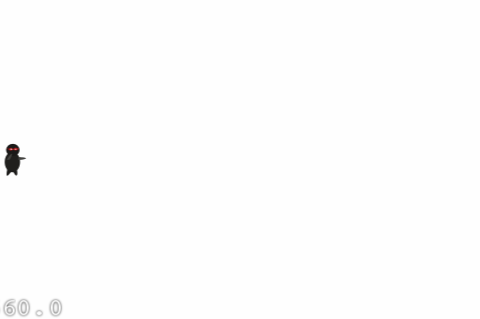
Oh dear, the black character is barely visible on the black background! Never mind, we can modify the background colour of the layer easily by inheriting from CCColorLayer instead of CCLayer:
public class GameLayer extends CCColorLayer
Update the scene() static method’s layer declaration to:
CCColorLayer layer = new GameLayer(ccColor4B.ccc4(255, 255, 255, 255));
Finally, update the constructor to the following:
protected GameLayer(ccColor4B color)
{
	super(color);
Now when you run the application you should have a nice white background.
Moving Targets
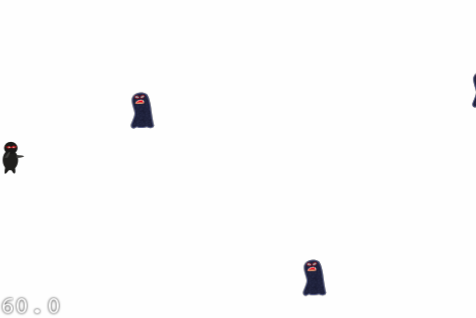
While it’s cool to display a single ninja, because well, ninjas are cool – we don’t yet have much of a game. What we really need are some targets for our ninja to throw stars at. While we’re at it we might as well make them move to give them a fighting chance. What we’ll do is create the targets off the screen to the right, then have them move to the left of the screen at varying speeds. Add the following method after the constructor:
protected void addTarget()
{
	Random rand = new Random();
	CCSprite target = CCSprite.sprite("Target.png");

	// Determine where to spawn the target along the Y axis
	CGSize winSize = CCDirector.sharedDirector().displaySize();
	int minY = (int)(target.getContentSize().height / 2.0f);
	int maxY = (int)(winSize.height - target.getContentSize().height / 2.0f);
	int rangeY = maxY - minY;
	int actualY = rand.nextInt(rangeY) + minY;

	// Create the target slightly off-screen along the right edge,
	// and along a random position along the Y axis as calculated above
	target.setPosition(winSize.width + (target.getContentSize().width / 2.0f), actualY);
	addChild(target);

	// Determine speed of the target
	int minDuration = 2;
	int maxDuration = 4;
	int rangeDuration = maxDuration - minDuration;
	int actualDuration = rand.nextInt(rangeDuration) + minDuration;

	// Create the actions
	CCMoveTo actionMove = CCMoveTo.action(actualDuration, CGPoint.ccp(-target.getContentSize().width / 2.0f, actualY));
	CCCallFuncN actionMoveDone = CCCallFuncN.action(this, "spriteMoveFinished");
	CCSequence actions = CCSequence.actions(actionMove, actionMoveDone);

	target.runAction(actions);
}
The code is rather verbose to make it as easy to read & understand as possible. Near the bottom we’ve introduced a new concept: Actions. Actions are a very accessible way of getting sprites to do things without constant babysitting. You can get sprites to move, rotate, fade, jump, etc. We use three different actions in this method:
- CCMoveTo: The CCMoveTo action moves a sprite from its current position to a new one. In this case we’re moving the sprite from just beyond the right edge of the screen to just beyond the left edge of the screen (remember the origin of a sprite is the centre, hence why we divide the width by two). The duration is specified in seconds between 2 and 4. As an exercise, try changing the type from int to float so we aren’t restricted to whole seconds.
- CCCallFuncN: The CCCallFuncN action allows you to specify a callback. The ‘N’ means this action allows you to specify a parameter.
- CCSequence: This is a rather special action in that it doesn’t do anything itself. Instead it lets you run a sequence of actions, one after the other in a linear fashion. We use this so that we can move the sprite, then when the movement has finished call our callback.
The eagle-eyed may have noticed that we have a callback, yet the method doesn’t yet exist! We better correct that right now, add the following method to our class:
public void spriteMoveFinished(Object sender)
{
	CCSprite sprite = (CCSprite)sender;
	this.removeChild(sprite, true);
}
This method will remove the sprite when it has finished animating to the left of the screen. The second parameter is to ‘cleanup’ the sprite, this means it is completely unloaded and we get the memory back. In a real game you would only clean up a sprite as a last resort, re-using a sprite is much better from a performance perspective. We’re going down the wasteful route to make the concept of the game as simple as possible – simple is good when learning!
Now we have code to create and animate targets, but we never call this code! What we’ll do is spawn a new target every second automatically giving the ninja plenty of shuriken practice. Add the following line of code to the bottom of the constructor:
this.schedule("gameLogic", 1.0f);
Also add the following new method to the class:
public void gameLogic(float dt)
{
	addTarget();
}
Now run the application and we should have some action:
Shooting Projectiles
I like to be able to shoot my targets, so let’s add some shooting! We’re going make things simple by having the user tap to shoot, where you tap is where the projectile goes.
We’ll use CCMoveTo to animate the projectile just like how we animated the targets. The problem is, CCMoveTo requires a destination to move to, but we can’t use the tap location since that means the projectile would stop in the middle of the screen. What we need to do is use the tap as a direction, rather than a destination.
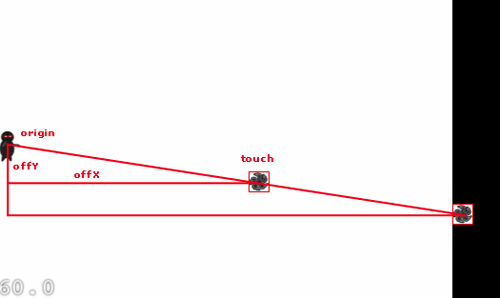
This should look familiar to anyone who didn’t fall asleep in maths class – Pythagoras! Now before we fall asleep with yet more theory, let’s start coding. In the constructor add the following line:
this.setIsTouchEnabled(true);
Next add the following method to the class:
@Override
public boolean ccTouchesEnded(MotionEvent event)
{
	// Choose one of the touches to work with
	CGPoint location = CCDirector.sharedDirector().convertToGL(CGPoint.ccp(event.getX(), event.getY()));

	// Set up initial location of projectile
	CGSize winSize = CCDirector.sharedDirector().displaySize();
	CCSprite projectile = CCSprite.sprite("Projectile.png");

	projectile.setPosition(20, winSize.height / 2.0f);

	// Determine offset of location to projectile
	int offX = (int)(location.x - projectile.getPosition().x);
	int offY = (int)(location.y - projectile.getPosition().y);

	// Bail out if we are shooting down or backwards
	if (offX <= 0)
		return true;

	// Ok to add now - we've double checked position
	addChild(projectile);

	// Determine where we wish to shoot the projectile to
	int realX = (int)(winSize.width + (projectile.getContentSize().width / 2.0f));
	float ratio = (float)offY / (float)offX;
	int realY = (int)((realX * ratio) + projectile.getPosition().y);
	CGPoint realDest = CGPoint.ccp(realX, realY);

	// Determine the length of how far we're shooting
	int offRealX = (int)(realX - projectile.getPosition().x);
	int offRealY = (int)(realY - projectile.getPosition().y);
	float length = (float)Math.sqrt((offRealX * offRealX) + (offRealY * offRealY));
	float velocity = 480.0f / 1.0f; // 480 pixels / 1 sec
	float realMoveDuration = length / velocity;

	// Move projectile to actual endpoint
	projectile.runAction(CCSequence.actions(
			CCMoveTo.action(realMoveDuration, realDest),
			CCCallFuncN.action(this, "spriteMoveFinished")));

	return true;
}
What we are doing here is first enabling touch support. We’re telling Cocos2D that we are ready to handle touches for the current layer. Next we add code to handle touches from the user.
First we get the coordinates of the touch itself, and convert to the Cocos2D coordinate system. This method should work regardless of the orientation of the device.
Next we create the sprite and position it over the ninja. We then work out where the projectile should move to by extending the tap off the screen. This is done by getting the X and Y offset of the tap to the projectile’s starting position. We then get the ratio of Y to X, and simply scale the touch Y coordinate to match the scaled up X coordinate (which is just off the screen). The only problem with a simple algorithm like this is that the projectile must reach the right edge of the screen before it’s cleaned up, the projectile could leave the screen (top or bottom) long before it hits the right edge. There are solutions to this problem, but they’re beyond the scope of this tutorial.
After working out the destination, we need to work out the duration of the movement – we can’t have projectiles taking different amounts of time just because of the angle they’re shot at. To solve this problem we use Pythagoras to work out the distance the projectile needs to travel, then divide that by the velocity we want. This is because velocity = distance over time, or by re-arranging: time = distance over velocity.
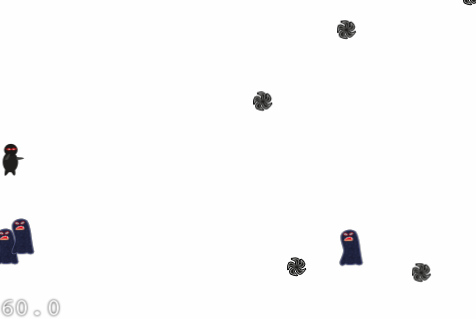
Finally we run the actions on the projectile. Run the application and you should be able to start shooting shurikens!
Collision Detection
It’s no good if you can shoot shurikens, but they don’t actually do anything! To solve this problem we need to add some collision detection. To keep things simple we’ll use simple bounding box collision detection rather than the other more exotic methods Cocos2D provides.
To be able to run collision detection we need to be able to keep track of all of the sprites we have. Add the following fields to the top of the class declaration:
protected ArrayList<CCSprite> _targets;
protected ArrayList<CCSprite> _projectiles;
You’ll need to instantiate the arrays near the top of the constructor:
_targets = new ArrayList<CCSprite>();
_projectiles = new ArrayList<CCSprite>();
Now add the following to the addTarget() method just below the addChild(target) line:
target.setTag(1);
_targets.add(target);
In the ccTouchesEnded method add the following just below the addChild(projectile) line:
projectile.setTag(2);
_projectiles.add(projectile);
Finally update the spriteMoveFinished method to remove the sprite from the appropriate array:
if (sprite.getTag() == 1)
	_targets.remove(sprite);
else if (sprite.getTag() == 2)
	_projectiles.remove(sprite);
If you run the project now you shouldn’t notice any difference – but now we’re tracking all of our sprites! This gives us a great deal of extra power, and we shall use this power to add some collision detection. Add the following method to the class:
public void update(float dt)
{
	ArrayList<CCSprite> projectilesToDelete = new ArrayList<CCSprite>();

	for (CCSprite projectile : _projectiles)
	{
		CGRect projectileRect = CGRect.make(projectile.getPosition().x - (projectile.getContentSize().width / 2.0f),
											projectile.getPosition().y - (projectile.getContentSize().height / 2.0f),
											projectile.getContentSize().width,
											projectile.getContentSize().height);

		ArrayList<CCSprite> targetsToDelete = new ArrayList<CCSprite>();

		for (CCSprite target : _targets)
		{
			CGRect targetRect = CGRect.make(target.getPosition().x - (target.getContentSize().width),
											target.getPosition().y - (target.getContentSize().height),
											target.getContentSize().width,
											target.getContentSize().height);

			if (CGRect.intersects(projectileRect, targetRect))
				targetsToDelete.add(target);
		}

		for (CCSprite target : targetsToDelete)
		{
			_targets.remove(target);
			removeChild(target, true);
		}

		if (targetsToDelete.size() > 0)
			projectilesToDelete.add(projectile);
	}

	for (CCSprite projectile : projectilesToDelete)
	{
		_projectiles.remove(projectile);
		removeChild(projectile, true);
	}
}
This is a brute-force approach to collision detection. Basically we iterate through all of the projectiles and targets, creating a rectangle for each and then checking if they intersect. If there is an intersection we remove the sprites from the scene and arrays. We use the ‘toDelete’ arrays since we can’t manipulate an array while we’re iterating through it in the manner we’ve chosen. Before the collision detection will work, we need to schedule the method to be called every frame. Add the following line at the bottom of the constructor:
this.schedule("update");
Finishing Touches
We’re pretty close to a fully working game now (albeit a simple one!). All games have sound effects of some sort, and this one is no exception! First we should talk about the audio formats Android supports, since Cocos2D can’t do anything about the supported audio formats on the platform it’s running on. The current port of Cocos2D on Android doesn’t contain a full sound engine yet, certainly not on par with CocosDenshion offered on the iPhone. For this reason we’ll use basic wav files for this tutorial. We’ll also add some additional code logic so you can win/lose.
First you’ll need to get some audio for the background music and a sound effect for the shurikens. You can source your own, or download the wav version of the background music, and pew pew sound effect from Ray Wenderlich’s tutorial. Put the wav files in the res/raw folder of your project.
In the constructor add the following code after the addChild(player) line:
Context context = CCDirector.sharedDirector().getActivity();
SoundEngine.sharedEngine().preloadEffect(context, R.raw.pew_pew_lei);
SoundEngine.sharedEngine().playSound(context, R.raw.background_music_aac, true);
Next in the ccTouchesEnded method add the following code:
Context context = CCDirector.sharedDirector().getActivity();
SoundEngine.sharedEngine().playEffect(context, R.raw.pew_pew_lei);
Now we need to create a win/lose scene. Add a new class with the name ‘GameOverLayer’, have it inherit from CCColorLayer. Use the following code for the new class:
public class GameOverLayer extends CCColorLayer
{
	protected CCLabel _label;

	public static CCScene scene(String message)
	{
		CCScene scene = CCScene.node();
		GameOverLayer layer = new GameOverLayer(ccColor4B.ccc4(255, 255, 255, 255));

		layer.getLabel().setString(message);

		scene.addChild(layer);

		return scene;
	}

	public CCLabel getLabel()
	{
		return _label;
	}

	protected GameOverLayer(ccColor4B color)
	{
		super(color);

		this.setIsTouchEnabled(true);

		CGSize winSize = CCDirector.sharedDirector().displaySize();

		_label = CCLabel.makeLabel("Won't See Me", "DroidSans", 32);
		_label.setColor(ccColor3B.ccBLACK);
		_label.setPosition(winSize.width / 2.0f, winSize.height / 2.0f);
		addChild(_label);

		this.runAction(CCSequence.actions(CCDelayTime.action(3.0f), CCCallFunc.action(this, "gameOverDone")));
	}

	public void gameOverDone()
	{
		CCDirector.sharedDirector().replaceScene(GameLayer.scene());
	}

	@Override
	public boolean ccTouchesEnded(MotionEvent event)
	{
		gameOverDone();

		return true;
	}
}
Now we need to add some logic to the GameLayer to trigger the game over scene. Add the following field to the top of the GameLayer class:
protected int _projectilesDestroyed;
In the constructor, just after you initialise the arrays add the following line:
_projectilesDestroyed = 0;
In the update method, just after removeChild(projectile, true) add the following code:
if (++_projectilesDestroyed > 30)
{
	_projectilesDestroyed = 0;
	CCDirector.sharedDirector().replaceScene(GameOverLayer.scene("You Win!"));
}
Update the if statement in spriteMoveFinished to the following:
if (sprite.getTag() == 1)
{
	_targets.remove(sprite);

	_projectilesDestroyed = 0;
	CCDirector.sharedDirector().replaceScene(GameOverLayer.scene("You Lose, boo"));
}
else if (sprite.getTag() == 2)
	_projectiles.remove(sprite);
Go ahead and give the game a play!
Gimme The Code!
You can download the full source code here.
Where To Now?
This project provides a good basis for further development. Some possible changes were mentioned as part of the tutorial, others are limited only by your imagination! Check out the test projects that come with the source of Cocos2D, see if you can integrate some of them into the project here.
Alternatively, you can follow the next tutorial in the series here.
This is my first tutorial, and I hope you’ve enjoyed it!
Hi.
Just found and (and “over-read” I admit) your article from my google alert.
This is nice materials and thanks for the invested time.
Cheers,
Gama
It is a very good tutorial for learning basics of android gaming….
It is easy to understand…
thanxxxxxxxxxxxxxxxxxxxxxxxxxxxxxxxx
hi
Dude, you rock!
Thanks for an idea, you sparked at thought from a angle I hadn’t given thoguht to yet. Now lets see if I can do something with it.
hi i am getting error while importing the classes in my project …whats wrong with my project ..? how to doit without error my jar file is not containing some functionality like CGRect.intersect ..
please replay me
@koteswar.
It could be you’re using an older copy of the library. Try downloading the source files for Cocos2D and directly adding them to your project (copy the ‘org’ folder into your ‘src’ folder, then press F5 while the src folder is selected in the project explorer), making sure to remove the reference to the jar file. This should resolve any missing functionality, while giving you extra help when typing in Cocos2D code (Eclipse will automatically display the javadoc comments for you).
Hi Dan,
I had been following Ray Wenderlich for quite some time and was wondering if there were something similar for android as well. Thanks to you, we have it now. I haven’t started working with the Cocos2D-Android yet, but will be starting pretty soon, and then maybe I’ll bombard you with a lot of Questions. 😀 . For the time being, just want to thank you (and Ray as well) for your great efforts. 🙂
Hey Dan,
I was just working out with the source and found a few issues on my side. I think we don’t need the onCreate() method in the GameLayer class, as then it would need to extend the Activity super class as well. Besides we already have the GLSurfaceView in the default (SimpleGame) class. Also, the “scene” has not been created in the GameLayer, so we won’t be able to access it through
in SimpleGame.java . Instead we could use
Abhimanyu, thanks for going through the tutorial! You’re quite right with the onCreate, I’m not sure why it’s even there (in the sample download it isn’t). It was probably when moving content around in the doc – I’ll make sure to remove it, good catch!
The scene isn’t created in the game layer, but it is created in a static method for convenience. It creates the scene as you’ve done, but also automatically creates the GameLayer and adds it before returning the complete scene. You could definitely use your method, but make sure to create an instance of GameLayer and add it to the scene.
What about Android Manifest.xml file?What all things should be included?Plz reply
The manifest doesn’t require anything special – Eclipse will create it for you with the project. Download the source code provided at the bottom of the tutorial for a working copy that you can inspect if you’re having trouble with your manifest.
> The scene isn’t created in the game layer, but it is created in a static method for convenience.
This bit confused me. By doing “runWithScene(GameLayer.scene()) it means that your SimpleGame class can’t then access/interact with the scene that’s being displayed.
I tried calling methods or moving sprites on my gameLayer object from outside, but frustratingly, nothing was being reflected on screen. I solved it by adding “public static CCScene scene” to the GameLayer and doing ‘scene.addChild(this)’ in the instantiation method.
Then, when switching scenes I do “runWithScene(gameLayer.scene)” and I can later call “gameLayer.doSomething()” and see the results displayed. I might be forgetting my object-oriented programming, so was it necessary what I did? Thanks for the great tutorial by the way.
Chris
Chris, you have found the fatal flaw with the architecture of the tutorial! To keep it simple everything is kept within the layer code itself. In a real game you would ideally move all of the game logic out of the layer (since that’s a UI construct – not a game logic construct). What you’ve done is a very elegant solution to the problem of accessing the game code within the confines of the existing architecture. However, I would recommend going with your own solution rather than the tutorial’s for your actual game (which I think you’re doing anyway).
Very Good Tutorial^^
I’m Korean. And my English is very poor.
But this article’s english level is very easy to me^^
I want make simple Role-playing game in Android platform using openGL or Cocos2d.
Please write more Tutorials ^^
hello its very good tutorial!
but i want the code to move the player from top to bottom and it can fire in straight direction!
and target should also move from bottom to top instead of right to left!
pls guide me if u can , its urgent!
Thanks
I’m afraid that’s a little out of the scope of the tutorial, however I can hopefully point you in the right direction. Changing the target direction is easy, you just switch the X coordinate for the Y coordinate. The caveat with this is the origin of the game screen is in the bottom left, so the Y coordinate increases as you go up the screen (at the moment we count down to 0, instead you’ll need to increase the Y coordinate from 0 to the height of the screen).
Moving the player is trickier, depending on how you want the player to move. The easiest would be to pick up each touch on the screen (as we already do) and use a MoveTo action to move the player. You should leave the X coordinate as is, and just make the new Y coordinate match the Y coordinate of the touch. Once the movement has completed, you can create a shuriken and have it move from the left of the screen to the right of the screen with a MoveTo action. In this case you’ll leave the Y coordinate as the player’s current position, and just move the X coordinate.
In essence your modifications will make the maths much simpler, since you’re only using X and Y coordinate transforms, you don’t need to use trigonometry at all.
thank u for u r kind reply .for moving target bottom to top i have already tried to change co-ordinates but i m not able to do so. If u can show me specific changes than i can understand better.
->Other thing i want to set an image as game background ,hw can i do it?
-> And i want to over the game when 10enemies are missed to hit!
wait for u r kind and fast reply!
I’m afraid this moves from a basic tutorial to game development. I would suggest making a prototype of your game on the PC rather than Android to simplify development as much as possible. You can still use Cocos2D on the desktop, however to get the hang of state and logic it can be easier to make the game in a game maker. Playing around with these tools will allow you to learn very quickly how to solve the fundamental issues. You can do some very cool stuff with Game Maker in an extremely short amount of time. Alternatively Flash also allows for quick & easy development of games (and with Air can be ported to Android) – however this is more complicated than Game Maker.
The skills you learn can then be transferred to any programming language or game engine you choose to use in the future.
i m using balloon as an target so if i want it in different colors thn wht i can do?
For different balloons you’ll need to create multiple sprite graphics, and load the correct sprite graphic for the desired colour.
Yo , I am making a new popular forum and your articles would fit the style good. Would I be able to copy and paste your website?
Thanks for asking. I don’t mind quotations and links, but please don’t rip entire blog posts into your website!
Hi Dan, i need you suggestion or some code snippets…
How can i make a GLSurfaceView with zoom in/out features?
Hi bamibestelt. I’m not sure exactly what you’re trying to achieve, however I suspect the answer I gave Joel will serve you too. Check out this forum thread for further info.
Is there any easy way to handle image scaling according to the pixel density of the screen? I was running the game on my device and since my screen has a high pixel density, all the sprites look smaller on the screen. Do I have to scale the sprites manually or is there any built in methods in Cocos2D to handle that?
Hi Joel. I’m not aware of a super-easy way of handling the various DPIs we get with Android. This is most likely due to the fact that games may want to scale in different ways (for example an RTS game would benefit from no scaling) and that the port we’re using of Cocos2D is largely a direct port of the iOS version which doesn’t need to worry about DPI. However, there are two solutions I have found. The first is you can scale the entire game scene, more information is available in this thread. The other is to use cocos2d-x, which when I last checked had an ongoing dialogue regarding whether to provide built-in compensation for various DPIs.
shouldn’t it be
projectile.setTag(2);
instead of
projectile.setTag(1);
?
also .. couldn’t find a way to stop the background music when I close the game
This one is fortunately fairly easy to fix. Add the following code:
To the onStop() and onPause() methods in SimpleGame.java. You’ll need to re-start the sound (background music) in the onResume() method as well.
How do I re-start the background music? Because when I resume my game, only the projectile sound works.
I’ve already tried to add:
Context context = CCDirector.sharedDirector().getActivity();
SoundEngine.sharedEngine().playSound(context, R.raw.military_march, true);
in the onResume();
This is my current code:
@Override
public void onPause(){
super.onPause();
SoundEngine.sharedEngine().pauseSound();
CCDirector.sharedDirector().pause();
}
@Override
public void onResume(){
super.onResume();
SoundEngine.sharedEngine().resumeSound();
CCDirector.sharedDirector().resume();
}
@Override
public void onStop(){
super.onStop();
SoundEngine.sharedEngine().stopSound();
CCDirector.sharedDirector().end();
}
btw, great tutorial!
Hi Telles. I’ve put up a tutorial to cover just this (rather annoying!) limitation. You can check it out here: http://dan.clarke.name/2011/07/cocos2d-sound-in-android-tutorial/
You’re quite right! I’ve updated the article (the source code download appears to be correct!).
[…] just started playing around with cocos2d [a game engine] following this tutorial: How To Make A Simple Android Game with Cocos2D|Dan Clarke it was fun and easy to follow .. try it __________________ if I ever said anything that helped […]
Hi Dan,
This is really very helpful tutorial… thanks you so much… I have one query.. I am trying to set a drawable background, in place of below code:
CCScene scene = CCScene.node();
CCColorLayer layer = new GameLayer(ccColor4B.ccc4(255, 255, 255, 255));
scene.addChild(layer);
Will you please guide me?
Hi Mintu. In this case you’ll probably want to use a normal layer (CCLayer) rather than the CCColorLayer. Next in the constructor for your layer, add the following code:
CCSprite background= CCSprite.sprite("background.png");
this.addChild(background, 0);
In effect a giant sprite is the background for your scene. You can add the background sprite to the scene itself, however you’ll lose a great deal of flexibility by doing this. In the future you may want to perform some clever effects with the background that requires layering – then you’ll be glad the background is in a layer rather than the scene.
Hi,
thanks for this great tutorial! What other “exotic” ways does Cocos provide for collision detection. I’m trying to create a simple game, but the collision detection causes me trouble. Somehow the game slows down, the longer i play, while using a collision detection with CGRects. Unfortunately there are not many tutorials for cocos2d on android. Same for using box2d as. 🙁
Maybe you’ve got some tips for me! 🙂
Cheers!
oh … i’ve checked it again, i don’t think it’s because of the collision detection! sorry! 🙂 But anyway good tutorial!
Hi Nam. Cocos2D doesn’t provide any collision detection unfortunately. The CGRect detection isn’t ideal because it involves creating a lot of objects every frame just to garbage collect them, it’s extremely inefficient. What you would do is perform the collision detection yourself. Gamedev have a good article here on the traditional box collision detection (basically the same as using CGRect, but faster): http://www.gamedev.net/page/resources/_/reference/programming/game-programming/collision-detection/collision-detection-r735.
Another type of detection is bounding circle collision detection: http://stackoverflow.com/questions/697188/fast-circle-collision-detection. This is good for sprites that generally fit into a circle.
Hi Dan,
I am new to android gaming and i was trying hands on your code of game development using cocos engine.
My codes are
package com.java4u.android;
import org.cocos2d.layers.CCScene;
import org.cocos2d.nodes.CCDirector;
import org.cocos2d.opengl.CCGLSurfaceView;
import android.app.Activity;
import android.os.Bundle;
import android.view.Window;
import android.view.WindowManager;
public class P11Activity extends Activity {
/** Called when the activity is first created. */
protected CCGLSurfaceView _glSurfaceView;
@Override
public void onCreate(Bundle savedInstanceState)
{
super.onCreate(savedInstanceState);
requestWindowFeature(Window.FEATURE_NO_TITLE);
getWindow().setFlags(WindowManager.LayoutParams.FLAG_FULLSCREEN, WindowManager.LayoutParams.FLAG_FULLSCREEN);
getWindow().setFlags(WindowManager.LayoutParams.FLAG_KEEP_SCREEN_ON, WindowManager.LayoutParams.FLAG_KEEP_SCREEN_ON);
_glSurfaceView = new CCGLSurfaceView(this);
setContentView(_glSurfaceView);
}
@Override
public void onStart()
{
super.onStart();
CCDirector.sharedDirector().attachInView(_glSurfaceView);
CCDirector.sharedDirector().setDisplayFPS(true);
CCDirector.sharedDirector().setAnimationInterval(1.0f / 60.0f);
CCScene scene = GameLayer.scene();
CCDirector.sharedDirector().runWithScene(scene);
}
@Override
public void onPause()
{
super.onPause();
CCDirector.sharedDirector().pause();
}
@Override
public void onResume()
{
super.onResume();
CCDirector.sharedDirector().resume();
}
@Override
public void onStop()
{
super.onStop();
CCDirector.sharedDirector().end();
}
}
code for class Game Layer is—
package com.java4u.android;
import org.cocos2d.layers.CCLayer;
import org.cocos2d.layers.CCScene;
import org.cocos2d.nodes.CCDirector;
import org.cocos2d.nodes.CCNode;
import org.cocos2d.nodes.CCSprite;
import org.cocos2d.opengl.CCGLSurfaceView;
import org.cocos2d.types.CGPoint;
import org.cocos2d.types.CGSize;
public class GameLayer extends CCLayer {
public static CCScene scene()
{
CCScene scene = CCScene.node();
CCLayer layer = new GameLayer();
scene.addChild(layer);
return scene;
}
protected GameLayer()
{
CGSize winSize = CCDirector.sharedDirector().displaySize();
CCSprite player = CCSprite.sprite(“Player.png”);
——->player.setPosition(CGPoint.ccp(_player.getContentSize().width / 2.0f, winSize.height / 2.0f));
———->addChild(_player);
}
}
I am getting error in the game layer class in the last two lines.i would be very thankful to you if you help me out
Hi. The problem you’re getting is a typo on ‘player’. You’ve prefixed some of the player references with _ when the variable declaration doesn’t have it.
Try:
player.setPosition(CGPoint.ccp(player.getContentSize().width / 2.0f, winSize.height / 2.0f));
addChild(player);
Hi Dan,
Thanks for giving the tutorial. If i want to move the ninja up and down . How can we do this. ?
Thanks,
Jubin Mehta
Hi Jubin.
The first thing you’ll need to do is decide how the user will trigger this movement, since all taps currently result in the Shuriken being fired. I would update ccTouchesEnded to pick up whether the user has tapped with an x-coordinate of say 100 or less. If they have, instead of firing the Shuriken we trigger a ccMoveTo action to move the player sprite to the y coordinate of the touch. You’ll also need to update ccTouchesEnded to take into account the position of the player – this will involve updating the projectile.setPosition call to use the player’s y coordinate, rather than the middle of the screen. The maths afterward use the projectile’s actual position so I don’t think you’ll need to do any more.
Dan
Hi Dan,
first wanted to say, what a great tutorial! Thank you. I got your program up and running. Nice! I have a really dumb question. On the screen, why is there a changing number at the bottom left corner displayed. On your screeshot it is 60.0. I take it, it comes from fps_images.png. What is the reason behind this?
Kind regards,
Benno
Hi Benno. The numbers are the Frames Per Second, or ‘FPS’. The FPS varies depending on the device – the screenshot in this particular example comes from Ray Wenderlich himself from (I’m assuming) the iPhone Simulator. The simulator will be using the desktop’s GPU, so a simple game like this will always run at bang-on 60fps which is the refresh rate of the monitor. Since we’re testing on an Android device, we tend to fluctuate in terms of FPS a little due to varying amounts of compute resources available to our game on a frame by frame basis.
The fps_images.png file is a ‘font map’ which allows Cocos2D to render text in a very fast manner. If you want to use your own custom fonts in a game, you’ll need to create something similar; albeit with a few more letters!
hi dan,
when i tried to run the code (collison detection) above i am getting the error
error line————–>>>> if (CGRect.intersects(projectileRect, targetRect))
error:::the method intersects(CGRect, CGRect) is undefined for the type CGRect
Please help me out.
go to https://github.com/ZhouWeikuan/cocos2d, download the lastest version.
In “cocos2d / cocos2d-android / libs / cocos2d-android.jar”, replace your jar inside the libs folder.
The problem will be solved automatically.
I have tried with this option but it. But the size of that file is too small and it does not show any classes when it is added to build path
Hello,
I am getting an error in the ‘public void update(float dt)’ section of your code. The error comes from these lines:
for (CCSprite target : _targets)
{
CGRect targetRect = CGRect.make(target.getPosition().x – (target.getContentSize().width),
target.getPosition().y – (target.getContentSize().height),
target.getContentSize().width,
target.getContentSize().height);
—> if (CGRect.intersects(projectileRect, targetRect))
—> targetsToDelete.add(target);
}
The error says that “The method intersects(CGRect, CGRect) is undefined for the type CGRect”
Looks like someone might have changed the Cocos2D code in the latest update. How can I fix this?
Coolest stuff.Please write more
Thank you
Hey Man,
I’m new to Android and very much appreciate this!
Just wondering if this will be possible in Live Wallpapers?
-Jimmy
Hi Dan, thanks for this great tutorial.
However with the latest download of cocos2d-android.jar it doesn’t work anymore, and despite some time trying to overcome the problems I can’t find the solutions.
As already pointed out above, the ‘CGRect.intersects’ method doesn’t exist anymore.
And also, the entire ‘SoundEngine’ class seems to have disappeared.
It would be really appreciated if you could either provide a link to the original jar file, just to get it working, or suggest alternative code to solve the issues.
Thanks!
Instead of:
if (CGRect.intersects(projectileRect, targetRect))
targetsToDelete.add(target);
Try this:
if ((projectile.getPosition().x >= (target.getPosition().x – projectile.getContentSize().width) && projectile.getPosition().x = (target.getPosition().y – projectile.getContentSize().height) && projectile.getPosition().y <= (target.getPosition().y – projectile.getContentSize().height) + (target.getContentSize().height + projectile.getContentSize().height)))
targetsToDelete.add(target);
Agree with this comment !! I have got both issues with the template available here http://code.google.com/p/cocos2d-android/downloads/list No ‘CGRect.intersects’ nor ‘CGRect.intersects’ method…
Any solution ?
https://github.com/ZhouWeikuan/cocos2d/blob/master/cocos2d-android/libs/cocos2d-android.jar
the intersects methods was not available in the older version download the latest version of cocos2d from the above link
hope it works
Awesome tutorial, thanks a lot
thanks you !!!!!!!!!!!!
Nice tutorial, well formatted one 🙂
Maybe you should try this android game. https://market.android.com/details?id=com.light.roller
Very much focused tutorial….thank you very much
Just FYI, in your code for the onCreate under Initial Setup, I think you have an extra ‘}’ at the end of the block.
good tutorial.
but i have not understand this tutorial.
Becoz i am new on Android game development,I googled about Android Cocos2D but i have not find any beginners level tutorial or book. So plzz tell me any book or tutorial at very bigenners level to learn Android Cocos2D not iphone(Bcoz i have no idea about iphone ).
Thanks.
Heya!! Great tutorial, just one question (and in fact, is not to much about the tutorial, but I think you can helpeme with your cocos2d android experience). How autoescale (for different screen size) works here? Actually, I haven’t found anything about this topic in web, you wknow how is that about?? Greetings!!!
thanks, dan…awesome tutorial
I had troubles getting this going with the jar from the cocos2d-android project, but once I built it from source, it seems to be working – thanks for your efforts on this!
Great tutorial indeed.It helps me a lot to start my first project using cocos2d.But i am stuck in one thing and that is how to manage different screen resolution using cocos2d android?
Did you find the answer to your question? Because I have the same problem…
Hi!
I have followed this tutorial to build a simple game.
But I get errors when I follow the “initial step” section of this website.
Here is my errors :
12-09 17:16:29.887: E/AndroidRuntime(383): FATAL EXCEPTION: GLThread 8
12-09 17:16:29.887: E/AndroidRuntime(383): java.lang.NullPointerException
12-09 17:16:29.887: E/AndroidRuntime(383): at org.cocos2d.nodes.CCDirector.drawCCScene(CCDirector.java:680)
12-09 17:16:29.887: E/AndroidRuntime(383): at org.cocos2d.nodes.CCDirector.onDrawFrame(CCDirector.java:648)
12-09 17:16:29.887: E/AndroidRuntime(383): at android.opengl.GLSurfaceView$GLThread.guardedRun(GLSurfaceView.java:1332)
12-09 17:16:29.887: E/AndroidRuntime(383): at android.opengl.GLSurfaceView$GLThread.run(GLSurfaceView.java:1116)
I promise that I follow every specific steps and I copy-and-paste the code from here to avoid typo.
Could you help me~QQ
Thanks ^^
@Eddyxd,
Did you ever get an answer to your post? I’m getting the same error.
JD
I had this problem as well! Like me, you probably also missed the section of the tutorial that says to move “fps_images.png” into the assets folder. Doing this fixed my null pointer exception.
Got past this error by plugging the Cocos2D source code into my project rather than the jar file.
After going through libgdx and AndEngine, thought of trying Cocos2D.
And I guess this is the best resource I’ve found so far
Thanks 🙂
So needed tutorial..Thanks a lot..
Hi all,
I found the complete working project for this tutorial with fixed all small typos also fixed ‘CGRect.intersects’ problem. I hope I could attach it here:)
http://dan.clarke.name/wp-content/uploads/resources/cocos2d/Cocos2DSimpleGameTut1.zip
Many thanks for this great tutorial.
Ignore my url to zipped project above:), I found now that source code is already there (in section ‘Gimme The Code!’), but I’ve misread it before probably:). Once again thanks for this tutorial.
Great tutorial. I am starting make android game now. This is what I am looking for . Thank you so much for the tutorial.
Very fine tutorial for the beginners .
It makes me jumping out from ugly api learning and a cool example expires me to keep playing, thanks a lot!
Hi,
thanks for the tutorial. this is a good one.
How can we set up a .tmx file instead of setting color layer?
kindly help
thanks
First of all, I appreciate for all of this great tutorials
hope you post more Cocos2D
Anyways, I was wondering how to turn off the BGM when I exit the game
I cannot stop the BGM unless I delete the application
hi ,
thanks for such a tutorial.
How to load .tmx file in android?
In my game layer i am doing something like this…..
_tilemap = CCTMXTiledMap.tiledMap(“TiledMap.tmx”);
_background = _tilemap.layerNamed(“Meta”);
_meta = _tilemap.layerNamed(“wall1”);
addChild(_tilemap);
But there is black screen.
.tmx file is not loading.
can you please help me here?
warm regards,
g bali
Thanks for the tutorial, Its very helpful.
Keep writing about Cocos2D
package co.co.s;
import org.cocos2d.layers.CCScene;
import org.cocos2d.nodes.CCDirector;
import org.cocos2d.opengl.CCGLSurfaceView;
import android.app.Activity;
import android.os.Bundle;
import android.view.Window;
import android.view.WindowManager;
public class CocosTestActivity extends Activity {
/** Called when the activity is first created. */
protected CCGLSurfaceView _glSurfaceView;
@Override
public void onCreate(Bundle savedInstanceState) {
super.onCreate(savedInstanceState);
requestWindowFeature(Window.FEATURE_NO_TITLE);
getWindow().setFlags(WindowManager.LayoutParams.FLAG_FULLSCREEN, WindowManager.LayoutParams.FLAG_FULLSCREEN);
getWindow().setFlags(WindowManager.LayoutParams.FLAG_KEEP_SCREEN_ON, WindowManager.LayoutParams.FLAG_KEEP_SCREEN_ON);
_glSurfaceView = new CCGLSurfaceView(this);
setContentView(_glSurfaceView);
}
@Override
public void onStart()
{
super.onStart();
CCDirector.sharedDirector().attachInView(_glSurfaceView);
CCDirector.sharedDirector().setDisplayFPS(true);
CCDirector.sharedDirector().setAnimationInterval(1.0f / 60.0f);
CCScene scene = GameLayer.scene();
CCDirector.sharedDirector().runWithScene(scene);
}
}
~~~~~~~~~~~~~~~~~~~~~~~~~~~~~~~~~~~~~~~~~~~~~~~~~~~~~~~~~~~~~~~~~~~~~~~~~~~~~~~~~~~~~~~~~~~~~~~~~~~~~~~~~~~
package co.co.s;
import org.cocos2d.layers.CCLayer;
import org.cocos2d.layers.CCScene;
import org.cocos2d.nodes.CCDirector;
import org.cocos2d.nodes.CCSprite;
import org.cocos2d.types.CGPoint;
import org.cocos2d.types.CGSize;
public class GameLayer extends CCLayer{
public static CCScene scene()
{
CCScene scene = CCScene.node();
CCLayer layer = new GameLayer();
scene.addChild(layer);
return scene;
}
protected GameLayer()
{
CGSize winSize = CCDirector.sharedDirector().displaySize();
CCSprite player = CCSprite.sprite(“hero.png”);
player.setPosition(CGPoint.ccp(player.getContentSize().width / 2.0f, winSize.height / 2.0f));
addChild(player);
}
}
~~~~~~~~~~~~~~~~~~~~~~~~~~~~~~~~~~~~~~~~~~~~~~~~~~~~~~~~~~~~~~~~~~~~~~~~~~~~~~~~~~~~~~~~~~~~~~~~~~~~~~~~~~~
ERROR!!!…
~~~~~~~~~~~~~~~~~~~~~~~~~~~~~~~~~~~~~~~~~~~~~~~~~~~~~~~~~~~~~~~~~~~~~~~~~~~~~~~~~~~~~~~~~~~~~~~~~~~~~~~~~~~
04-29 10:15:21.842: E/AndroidRuntime(11987): FATAL EXCEPTION: GLThread 10
04-29 10:15:21.842: E/AndroidRuntime(11987): java.lang.NullPointerException
04-29 10:15:21.842: E/AndroidRuntime(11987): at org.cocos2d.nodes.CCAtlasNode.updateBlendFunc(CCAtlasNode.java:168)
04-29 10:15:21.842: E/AndroidRuntime(11987): at org.cocos2d.nodes.CCAtlasNode.(CCAtlasNode.java:77)
04-29 10:15:21.842: E/AndroidRuntime(11987): at org.cocos2d.nodes.CCLabelAtlas.(CCLabelAtlas.java:40)
04-29 10:15:21.842: E/AndroidRuntime(11987): at org.cocos2d.nodes.CCLabelAtlas.label(CCLabelAtlas.java:35)
04-29 10:15:21.842: E/AndroidRuntime(11987): at org.cocos2d.nodes.CCDirector.setGLDefaultValues(CCDirector.java:593)
04-29 10:15:21.842: E/AndroidRuntime(11987): at org.cocos2d.nodes.CCDirector.onSurfaceCreated(CCDirector.java:636)
04-29 10:15:21.842: E/AndroidRuntime(11987): at android.opengl.GLSurfaceView$GLThread.guardedRun(GLSurfaceView.java:1349)
04-29 10:15:21.842: E/AndroidRuntime(11987): at android.opengl.GLSurfaceView$GLThread.run(GLSurfaceView.java:1119)
04-29 10:15:23.862: I/Process(11987): Sending signal. PID: 11987 SIG: 9
I ported cocos2d-x’s “chipmunk” & “BOX2D” to the Android Apps as to work.
Prease also see this site of “github” below.
https://github.com/hirokazuono/Chipmunk_and_BOX2D_of_cocos2dx_ported_to_Android
kanrinin_kanmasato(hirokazu_ono)
Movie -> http://youtu.be/fEVbocT8BtE
or -> http://www.firstpost.com/topic/product/android-cocos2dx-cocos2d-xbox2dchipmunk-to-video-fEVbocT8BtE-53093-1.html
————–
(Sorry, the urls below are in case of the posted urls above that can’t cliclable.)
site
movie
anothe place that posted the movie.
thanks Dan.initially i hated this tutorial due to lack of explanations.but later as i went through some iphone books and tried to relate both, this article was of great help in understanding the implementation.
Hi,
I m getting error saying forced to close I have properly added jar file and there is no error in eclipse. And am new to cosco2D please help.
thanks in anticipation.
I ran into an issue with this line in the tutorial
target.setPosition(winSize.width + (target.getContentSize().width / 2.0f), actualY);
but found a suggestion online that worked here…
target.setPosition(CGPoint.ccp(winSize.width + (target.getContentSize().width / 2.0f) , actualY/ 1.0f));
I am also having the worst time figuring out how to find the Java Docs for cocos2d. I have downloaded the source code from the git link posted above but there doesn’t seem to be any docs included.
The cocos2d_android source package doesn’t seem to have a docs folder and I can’t find any Android docs in the repositories online. Any suggestions would be most appreciated.
While I debuggin I catch:
06-06 10:35:09.760: ERROR/CCSprite(505): Unable to load texture from file: Player.png
Can u help me ?
i’m not sure, but I think this error occur cause:
C:\Program Files\Android\android-sdk\platforms\android-8\android.jar
hey bro, really great job! The original ios tutorial is cool but migrating the code from objective-c is not that easy. Thanks very much!
Hi first up all GREAT WORK!!!!!!! Thank you so much..
But there is a probm with sound package it cant find sound in org.cosco2D…Pls help
Thank you for the great tutorial! I was wondering how you could implement a menu in this tutorial? I have looked everywhere on Google, and cant find the answer… Any help would be amazing!!!
hi i am trying to run this game on my phone but it is me error “Process simplegame.game has stopped unexpectedly Force Close ” again and again plz Help me
thanks
hi dan,
after setting an oncreate method as shown above i run the application.
buts its showing force close .
i am running it on emulator.
why its not running?
thanks in advance for your answer.
how to set background to this apps.
with out using projectile is possible to make pop the target object ,when user touch the target by finger.
please suggest me.
I want to use these codes. I want to make the game much like you are telling. Does the problem?
codes belong to you?
boolean intersects ( CGRect r1, CGRect r2 )
{
// for positive values of w and h only.
// you have to check and flip values if they might be negative.
//
return !( r1.origin.x > r2.origin.x+r2.size.width || r1.origin.x+r1.size.width r2.origin.y+r2.size.height || r1.origin.y+r1.size.height < r2.origin.y );
}
i want to make lavels in this game.that’s mean when the users kills 30 target he will pass to the next level with differnet targets…I make another class called ‘GameLayer1″ like the “GameLayer” class but with differnet background color and different sprites but the new sprites doesn’t show up.I put these line in the “GameLayer” class in the “update(float dt)” methode
———>
if (++_projectilesDestroyed > 4){
_projectilesDestroyed = 0;
CCDirector.sharedDirector().replaceScene(GameOverLayer.scene(“You Win!”));
CCDirector.sharedDirector().setDeviceOrientation(CCDirector.kCCDeviceOrientationLandscapeLeft); CCDirector.sharedDirector().setDisplayFPS(true);
CCDirector.sharedDirector().setAnimationInterval(1.0f / 60.0f);
CCScene scene = GameLayer1.scene();
CCDirector.sharedDirector().runWithScene(scene);
————
can you help me please
Awesome tutorial! It was so helpful. I’ve just have to fix some little stuff (i.e. CGPoint.ccp(….) castings) and worked perfectly.
Something really nice would be if someone can explain how to build “cocos2d-android” library from the source code instead from the “.jar” file.
Thank you!
You can easily add in-app purchases to any android game based on cocos2d with this open source project – http://project.soom.la.
It can be used as a reference/sample code on github or you can use it as a library/sdk.
I need to put my admob ads into the game. so in the code instead of replacing a scene, how can i put the admob ads there. please help me out. i am unble to figure out how to do it.
Hi Dan, Thanks a lot for your tutorial. Can you please clarify my doubt? I am getting this error –couldn’t find class ‘org.cocos2d.opengl.CCGLSurfaceView’ referenced from the onCreate. What could be the problem? Hope you would reply me.
Hi Dan, Thank you very much for your great tutorial. I started my academic project based on this. Everything is working fine on PC. But when I set up everything in my lappy, I am running into some issues. I added jar file and “add External archive” option is not available in my eclipse and so I just selected the jar file in the libs and rightclick –> selected addtobuildpath. But I am getting errors at CGIntersect, soundengine lines in code. So, later I pasted the source code(i.e., copied org folder and pasted on ‘src’. But now to my surprise, it is showing errors on source code packages itself like on org.cocos2d etc., ). Please help me out ya. I have been trying this for a week, but no result. I have to submit this within two days. Hope you would help me out. Even I am not getting any sources online to solve this.
Rebulid Pro, try it…
Any1 wants to team up to build a few nice games?
Hi AM,
I know its quite long time ago, but my question is, if you are still searching for a team mate, as I am building a team having 2 mobile games projects. Let me know please.
Thanks
Ales
Really awesome tutorial….please share links of tutorials if any guys have
thank your very much! your are a good man.
Dude you are awesome !!!
AWESOME!!!
I want to know how to make an app in portrait. how can I convert coordinate in Portrait mode?? please help.
Hi Dan Clarke,
Got an issue on 4.3 version. Issue is “CCScene doesn’t appear on 4.3 version ??”
First of all. sorry for my bad english.
need to modify your tutorial
onStart(){ … } -> onCreate(Bundle){ … }
onStop(){ … } -> onDestroy() { … }
Your code makes OpenGL Error when pause and resume this game.
it means that your game isn’t completely operate pause activity
onStart(){ … } methods execute when resume activity always.
Any cocos2d-android-1’s API?
getting null pointer exception when importing the same project into ADT.. how to solve it
Thanks for this great tutorial. Can anybody clarify if the CCQuadParticleSystem class in cocos2d-android-1 works or not
I checked the the issues section at the project’s home, where it says to add particle systems outside of CTORs but I still get the NULL exception no matter what:
@Override
public boolean ccTouchesEnded(MotionEvent event) {
CGPoint location = CCDirector.sharedDirector().convertToGL(CGPoint.ccp(event.getX(), event.getY()));
CCQuadParticleSystem p = (CCQuadParticleSystem) CCQuadParticleSystem.particleWithFile(“fire.plist”);
if (p==null)
// failed !
return true;
p.setPosition(location);
p.resetSystem();
return true;
}
Thanks.
I’m seeing that the jar is over 2 years old. Is anyone still developing cocos2d for Android? I’ve been trying to work with it for a couple of weeks now but still can’t make the CCTMXTileMap, or CCFollow to work, and I’m not having any luck finding Android implementation of Box2D’s DebugDraw.
I’ll truly appreciate a reply to my email as this is a crucial moment in our development. We’re choosing a technology and I need to know if this will work.
hello,
i have done extacly you write but,
but when i run its does’nt show anything in emulator,
but i saw running report in ecllipse,means the activity is running
but its not show anything
can you please give me the solution what happened
i use android sdk 2.2 there
Awesome.
I want to do a game. But I don’t have any time. This tutorial help me so much to begin to work.
If someone knows about another tutorial like this please write about it and leave a link to follow it.
Thanks.
I can’t get the sprite graphics files into assets. Each time I run the game, it gets deleted! HELP!
i am not able to find the link to Cocos2d API for android, any help would be greatly appreciated.
Thanks for great tutorial and explanation. One thing that I didn’t understand is how u calculated actual Y for projectile’s targeted destination after touch.
 float ratio = (float)offY / (float)offX;

 int realY = (int)((realX * ratio) + projectile.getPosition().y);
How ratio is helping to scale u actual Y to targeted Y? It will be really great if you elaborate it to me. Thanks.
Thanks Man 😀 Great tutorial .
I found this tutorial extremely helpful. Thanks. I’ve been trying to port over a Cocos2d-iPhone game but as evan has asked, how do I set it up so that it’s always in portrait mode? It seems that the coordinate system is set to landscape because everything goes blank when it changes to portrait.
Pls. Give me some help how to add chartboost ad + leadbolt ads in coocs2d android source code.
Following the cocos2d tutorial i m trying to make a game.After adding sprites i dnt even get the earlier output in which there is a whiote backround with character simply
player.setPosition(CGPoint.ccp(_player.getContentSize().width / 2.0f, winSize.height / 2.0f));
addChild(_player);
this line contains error
I am getting error while running this code “Stackoverflowerror”
public class MainActivity extends Activity {
protected CCGLSurfaceView _glSurfaceView;
@Override
protected void onCreate(Bundle savedInstanceState) {
super.onCreate(savedInstanceState);
//setContentView(R.layout.activity_main);
requestWindowFeature(Window.FEATURE_NO_TITLE);
getWindow().setFlags(WindowManager.LayoutParams.FLAG_FULLSCREEN,WindowManager.LayoutParams.FLAG_FULLSCREEN);
getWindow().setFlags(WindowManager.LayoutParams.FLAG_KEEP_SCREEN_ON,WindowManager.LayoutParams.FLAG_KEEP_SCREEN_ON);
_glSurfaceView= new CCGLSurfaceView(this);
setContentView(_glSurfaceView);
}
@Override
protected void onPause() {
// TODO Auto-generated method stub
super.onPause();
CCDirector.sharedDirector().pause();
}
@Override
protected void onResume() {
// TODO Auto-generated method stub
super.onResume();
CCDirector.sharedDirector().resume();
}
@Override
protected void onStart() {
// TODO Auto-generated method stub
super.onStart();
CCDirector.sharedDirector().attachInView(_glSurfaceView);
CCDirector.sharedDirector().setDisplayFPS(true);
CCDirector.sharedDirector().setAnimationInterval(1.0f/60.0f);
CCScene scene= GameLayer.scene();
CCDirector.sharedDirector().runWithScene(scene);
}
@Override
protected void onStop() {
// TODO Auto-generated method stub
super.onStop();
CCDirector.sharedDirector().end();
}
I get nothing but a black screen when the app launches.
I’m using Cocos2D 0.99.4
Thanks a lot for elaborating in such a nice way. Can I import it using gradle?
Thanks a lot for elaborating in such a nice way. Can I import it using gradle?